reST – reStructuredText¶
A simple markup language for plain text files. For more details, see Docutils’ reStructuredText Reference.
Structural elements¶
Sectioning¶
Titles are under- (and over-)lined (decorated) by =*-^"~ as below. The
exact order of the decoration is not important, the one below is the Python
convention.
####
Part
####

*******
Chapter
*******

Section
=======

Subsection
----------

Subsubsection
^^^^^^^^^^^^^

Paragraph
"""""""""
Normal paragraphs are separated by a blank line.
Transitions¶
Any repetition of 4 or more punctuation characters with preceding and trailing blank line is a transition, and looks like this:
Inline markup¶
|
emphasize |
|
emphasize strongly |
|
|
|
don’t know |
The following example illustrates special cases:
Asterisk *, back-quote ` and a markup.
Lists¶
Bullet list¶
First item with some lengthy text wrapping hopefully across several lines.
Second item
Sub-item
Note the blank line before starting a sub-item.
Enumerated list¶
We start with point number 2
Automatically numbered item
Point a
Automatic point b.
Sub
Sub
Sub
Sub
Definition list¶
- what
Definition of “what”. We add a few words to show the line wrapping.
- how
Definition of “how”.
.
Field list¶
- Name:
Christoph Reller
- Long:
Here we insert more text to show the effect of many lines (in Pygments).
- Remark:
Start on the next line.
Options list¶
E.g. for listing command line options.
- -v
An option
- -o file
Same with value
- --delta
A long option
- --delta=len
Same with value
Blocks¶
Literal Blocks¶
A block which is not interpreted at all is preceded by a :: and a blank
line. The block must be intended. If no white space is preceding the
:: then it is displayed as “:”.
Block one:
**No** interpretation of
|special| characters.
Another block!
In the text body,
   indentation is
preserved
Line blocks¶
In a line block every line is preceded with | and at least one space.
Block quotes¶
The different indentation levels of paragraphs are preserved.
blah blah blah

  blah blah blah blah blah
  blah blah blah blah blah
  blah blah blah blah blah

blah blah blah.
Tables¶
Simple tables¶
Tables are preceded and ended with a sequence of “=” to indicate the
columns, e.g:
aA |
bB |
cC |
dD |
Headers are indicated by another sequence of “=”, e.g:
Vokal |
Umlaut |
|---|---|
aA |
äÄ |
oO |
öÖ |
Column spans are followed by a sequence of “-” (except for the last header
or last row of the table where we must have “=”), e.g:
Inputs |
Output |
|
|---|---|---|
A |
B |
A or B |
False |
False |
|
True |
False |
True |
False |
True |
True |
True |
True |
|
Table cells are treated like a small document on their own up to line breaks, e.g:
|
blah blah blah
blah blah blah
blah
blah blah
|
|
We can wrap the text in source |
|
aha |
Grid tables¶
Grid tables have a more difficult syntax but can express more complex tables.
Header |
Header with 2 cols |
|
|---|---|---|
A |
|
C |
B: *hey*
|
a block
of text
a break
|
|
List Tables¶
A simple table with header and caption can be constructed by means of a list table directive. Every major item must have the same number of sub-items. The relative widths of the columns can be specified and will be honored in the LaTeX output.
Length |
Name |
Description |
|---|---|---|
1.3 s |
A.wav |
Applause |
B.mp3 |
Explicit Markup¶
They all begin with two periods and a white space.
Footnotes¶
.. [2] precedes the definition of the footnote 2. It is referenced by
[2]_. E.g.
In the text [2].
First automatic [1]. Another automatic [3].
A labeled automatic [4]. Another of these [5].
An autosymbol [*]. More autosymbol [†].
Footnotes
There is no labeled version of these autosymbol footnotes.
Citations¶
.. [REL2009] is followed by the definition of the citation REL2009. It
is referenced as [REL2009]_ or REL2009_. Citation labels can contain
underlines, hyphens and fullstops. Case is not significant. In Sphinx,
definition and reference can reside in different files.
We cite [REL09] or REL09 or even rel09.
Citation
Hypertext links¶
External¶
There exist two version for doing this. Either in a citation style or in an inline style.
Citation style:
A link in citation style.
In printed documents the link will be listed similar as a citation, as opposed to HTML documents.
In-line style:
In-line versions are link or http://www.google.ch or (in Sphinx) http://www.google.ch.
Note
The syntax `link <URI>`_ produces both a link and a link name as
if you would have written .. _link: URI . This means that you can
re-reference the same target later in the document as `link`_.
To create an anonymous link (a link without specifying a name) use double
underscores `link <URI>`__. This form is necessary if you want many
links to have the same name, and it is the preferred form for one-time-used
links and for links of the form `<URI>`__.
Internal¶
To define a label for any text location, precede it with:
.. _‹label›:
plus a blank line. There are two ways of referencing a label.
The Sphinx way (preferred)
To reference ‹label› defined in any document of the project use:
:ref:`‹displayed text› <‹label›>`
If the ‹label› definition is followed by a section title then ‹displayed
text› can be omitted and will be replaced by the title. (In this case, the
characters < and > also have to be omitted.)
E.g. this section is preceded with .. _internal:, so we have:
|
|
|
This is the preferred way because it allows linking across files. E.g. subversion repository URL links to my document on subversion.
In Sphinx it is possible to reference a document as follows
|
The reST way
Given a definition of ‹label› has been made in the document, the following
will be substituted by ‹label› and link to it:
`‹label›`_
Section titles, footnotes, and citations automatically are link targets.
`Internal`_ produces Internal.
Directives¶
Directives are a general-purpose extension mechanism. The general syntax is similar to Explicit Markup:
.. ‹name›:: ‹argument 1›
            ‹argument 2›
   :‹option 1›: ‹value›

   ‹body›
reST directives¶
Table of Contents¶
Create a table of contents containing (sub)titles ranging from level 1 to level ‹number›:
.. contents:: `‹Title›`
   :depth: ‹number›
Include an Image¶
.. image:: ‹file name›
Example: the Wikipedia W

General Replacements¶
.. |‹something›| ‹directive›:: here we define what ‹something› is

here |‹something›| will be replaced by its definition.
Possible ‹directive›s are replace or image. Examples:
The Wikipedia .
Including a reST File¶
.. include:: ‹file name›
Note
Don’t use the same file name extension as your source files. Otherwise Sphinx will mistake this file as one of your regular source files.
Limit Content to Certain Output Format¶
Use the only directive to activate ‹content› only for given output formats
(such as html and latex):
.. only:: ‹what› [and ‹what›] [...]

   ‹content›
You are viewing the HTML output.
Raw Code¶
Code that is meant to appear unprocessed in the output can be written as:
.. raw:: ‹writer›

   ‹code›
where ‹writer› is html or latex (or some other output writer) and
‹code› is the actual code to be inserted.
Sphinx directives¶
Table of Contents¶
Create a table of contents across several files:
.. toctree::
   :maxdepth: ‹depth›
   :glob:

   ‹file 1 without file name extension›
   ‹file 2 without file name extension›
A glob option enables to use wildcards in the filenames, e.g. /comp/*
means all files under the directory comp.
Note
Don’t try to reference the file which contains the toctree directive,
otherwise a recursive loop occurs. Use the normal reST table of
contents directive instead.
Note
The depth can be further restricted per file by inserting the following Field list type element in the very first line of the file:
:tocdepth: ‹depth›
Include an Image¶
Basically, this is the same as in pure reST, with the addition that an asterisk (*) can be placed instead of the file extension. In this case, Sphinx will choose the correct file among potentially many depending on the builder (e.g. html or latex) that is currently running.
Creating an Index¶
Entries in the index are created automatically from all information units (like functions, classes or attributes). Explicit manual entries are made as:
.. index:: ‹keyword 1›, ‹keyword 2›, ...

.. index::
   single: ‹keyword›; ‹sub-keyword›

.. index::
   pair: ‹keyword 1st part›; ‹keyword 2nd part›
The first two versions create single (sub-)entries, while the last version creates two entries “‹keyword 1st part›; ‹keyword 2nd part›” and “‹keyword 2nd part›; ‹keyword 1st part›”.
Creating a Glossary¶
.. glossary::

   ‹reST definition list›
Example:
- reST¶
re-structured Text
Code Highlighting¶
Set Pygment to ‹language› for code highlighting in Literal Blocks globally for the whole file:
.. highlight:: ‹language›
   :linenothreshold: ‹number›
The additional linenothreshold option switches on line numbering for blocks
of size beyond ‹number› lines.
Specify the highlighting for a single literal block:
.. code-block:: ‹language›
   :linenos:

   ‹body›
The linenos option switches on line numbering.
Including a File as a Literal Block¶
.. literalinclude:: ‹filename›
   :language: ‹language›
   :linenos:
The options language and linenos set the highlighting to ‹language›
and enables line numbers respectively.
Boxed Stuff¶
Create a boxed note with ‹text›:
.. note:: ‹text›
Note
This is a note.
Create a boxed warning with ‹text›:
.. warning:: ‹text›
Warning
This is a warning.
Create a boxed ‹text› with some ‹title›:
.. topic:: ‹title›

   ‹text›
Create a “see also” box:
.. seealso::

   ‹reST definition list›
See also
- Apples
A kind of fruit.
Insert a Title that Does Not Appear in the Contents¶
Create a title not appearing in the table of contents by:
.. rubric:: ‹Title›
Centered Boldface Text Block¶
.. centered:: ‹text block›
There are very powerful directives in Sphinx for documenting source code.
Sphinx¶
Project¶
To start a Sphinx project use the interactive sphinx-quickstart command.
This will ask you all the necessary questions.You can choose to build with a
Makefile.
Customization is done in the file conf.py and the Makefile.
Math¶
There is a mathematical typesetting Sphinx extension
called sphinx.ext.pngmath based on LaTeX.
To enable the extension, the following line has to appear in conf.py:
extensions = ['sphinx.ext.pngmath']
Note
The sphinx.ext.pngmath extension needs dvipng.
You then can type standard LaTeX math expressions, either inline:
:math:`‹LaTeX math expression›`
or in display mode:
.. math::

   ‹LaTeX math expressions›
The second version is also available for a one line expression:
.. math:: ‹1 Line LaTeX math expression›
E.g:
Pythagoras a^2+b^2=c^2
\sum_{n=0}^N x_n = y
Multiline Math¶
Sphinx Built-in Mechanism
Several lines of math expressions can be entered by leaving a blank line between
them. In addition there is something like an align environment syntax if
lines are not separated by a blank line.
a+b = c b = x_n a &= y_n\\ &= c-b
Explicit LaTeX with amsmath mechanism
If the option nowrap is specified then the full LaTeX code (including the
math-environment) has to be given. We can assume that the amsmath package
is loaded. This is not limited to math typesetting, any LaTeX construct can be
rendered in this way.
\[a = b\]
or equivalenty
\[a = b\]
Equation Numbers¶
Equations are labeled with the label option and referred to using:
:eq:`‹label›`
E.g:
(1)¶a^2 + b^2 = c^2
See equation (1).
Graphics with TikZ¶
Take a look at my tikz sphinx extension to draw graphics and make plots with the LaTeX package TikZ.

Graphs with Graphviz¶
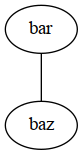
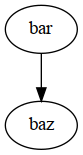
There is a graph drawing Sphinx extension based on Graphviz.
To enable the extension we have to add it to the extensions list in
conf.py:
extensions = ['sphinx.ext.graphviz']
On Ubuntu Linux the packages graphviz and libgraphviz4 have to me
installed. There is no need to install python-graphviz.
Examples¶
Comments¶
Everything starting like a directive with two periods and a space but is followed by normal text is a comment. Mark the indentation in the example:
Not comment anymore